
Autobrr
Autobrr is an app that allows you connect to an Indexer’s IRC channel, immediately starting torrent downloads for newer movies/shows without relying on Radarr/Sonarr’s slower RSS feed. This allows you to help build ratio on private trackers by beating everyone else to the torrent, so you can seed it to everyone else!
To get started, add this container declaration into your docker-compose.custom.yaml file under the services: parent item.
  autobrr:
    container_name: autobrr
    image: ghcr.io/autobrr/autobrr:latest
    restart: unless-stopped
    ports:
      - 7474:7474
    environment:
      - TZ=${TZ}
      - PUID=${PUID}
      - PGID=${PGID}
    volumes:
      - ${INSTALL_DIRECTORY}/config/autobrr:/config
Easy! Now, get that container up by running
yams start
Configuration
How the process will work:
- Autobrr will monitor new torrent announcements from your indexer, sending them to Radarr/Sonarr
- The torrent is checked by Radarr/Sonarr. If it is not relevant, it is rejected. If it passes the criteria (e.g quality/formats) it is sent to qBitTorrent for downloaded.
Open up Autobrr’s web interface in your browser.
1. Add your indexer.
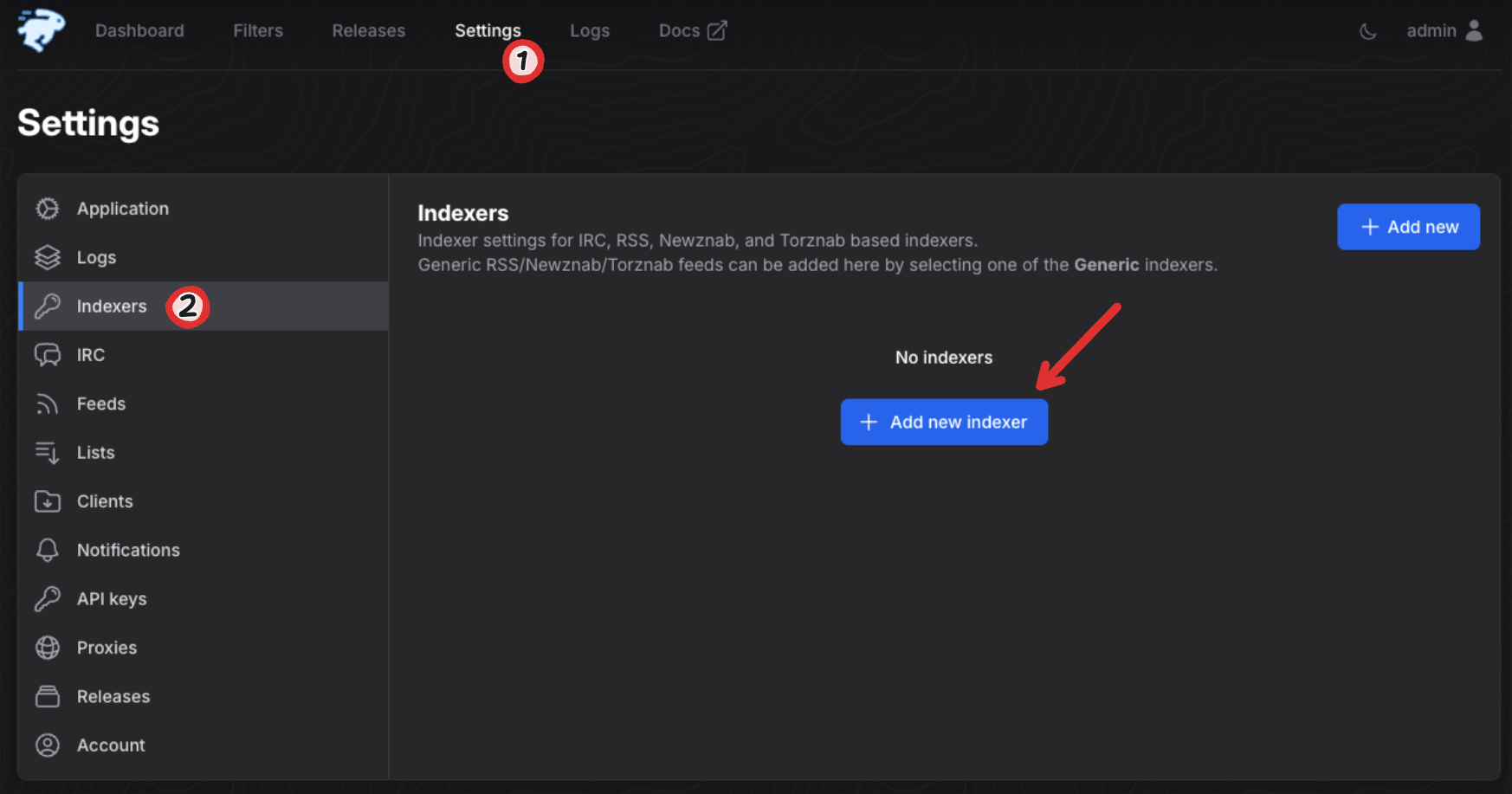
Navigate to the ‘Settings’ tab, and then the ‘Indexers’ section. Click on ‘Add new indexer’.
This will require you to enter your indexer name and RSS Key. Be sure to follow the IRC Guide paired with any resources for your tracker to determine required IRC information.
2. Add Radarr and Sonarr Clients
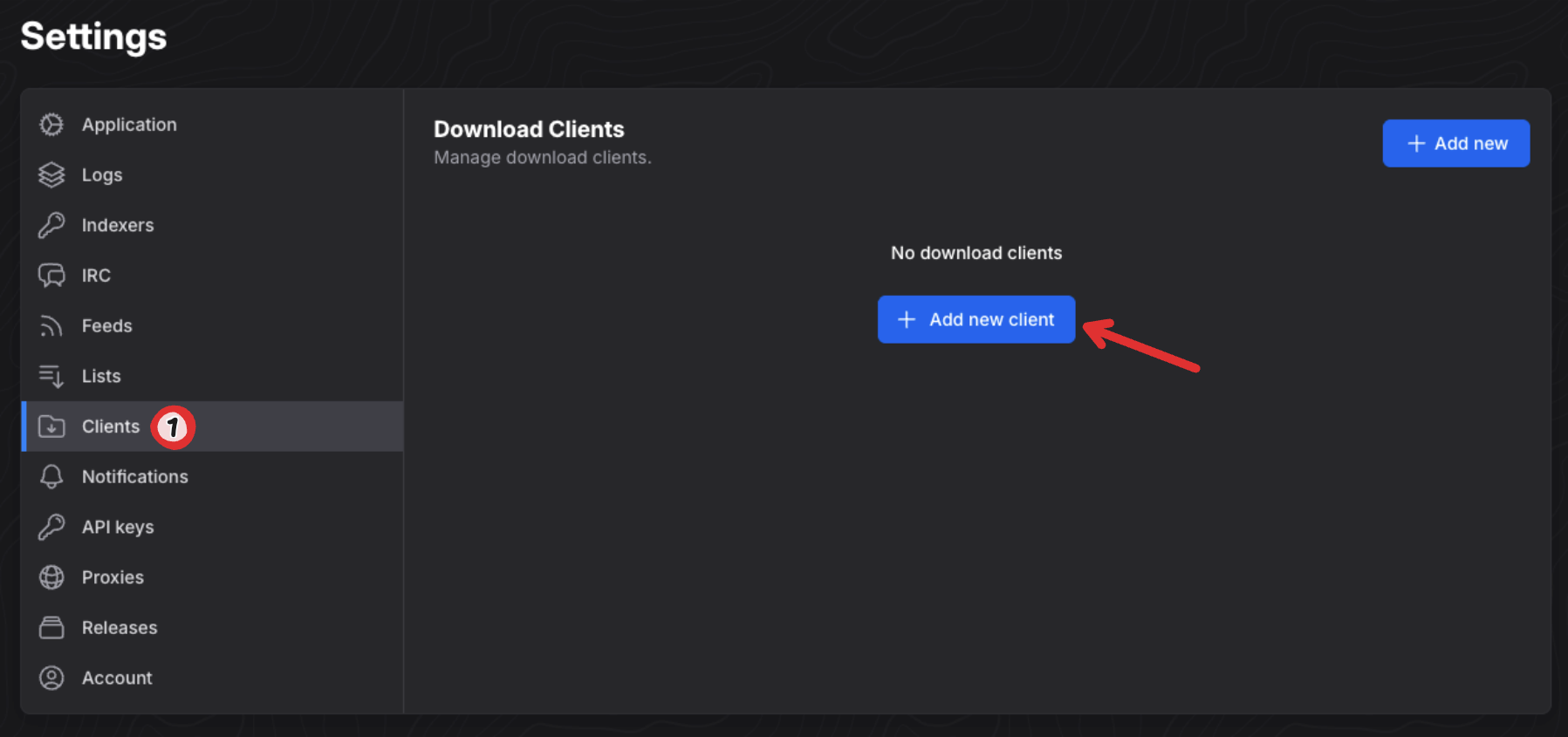
Navigate to the ‘Client’ section and click ‘Add new Client’.
Name your client ‘Radarr’, and select Radarr from the list of client options. Then, enter http://radarr:7878 as the Host and put in your API key.
Now, let’s create another client for tv shows. Name this one ‘Sonarr’, and select Sonarr from the list of client options. Then, enter http://sonarr:8989 as the Host and put in your API key. Done!
API keys can be found in Radarr/Sonarr by going to Settings > General > Security
3. Add Movie and Tv Show Filters and Actions
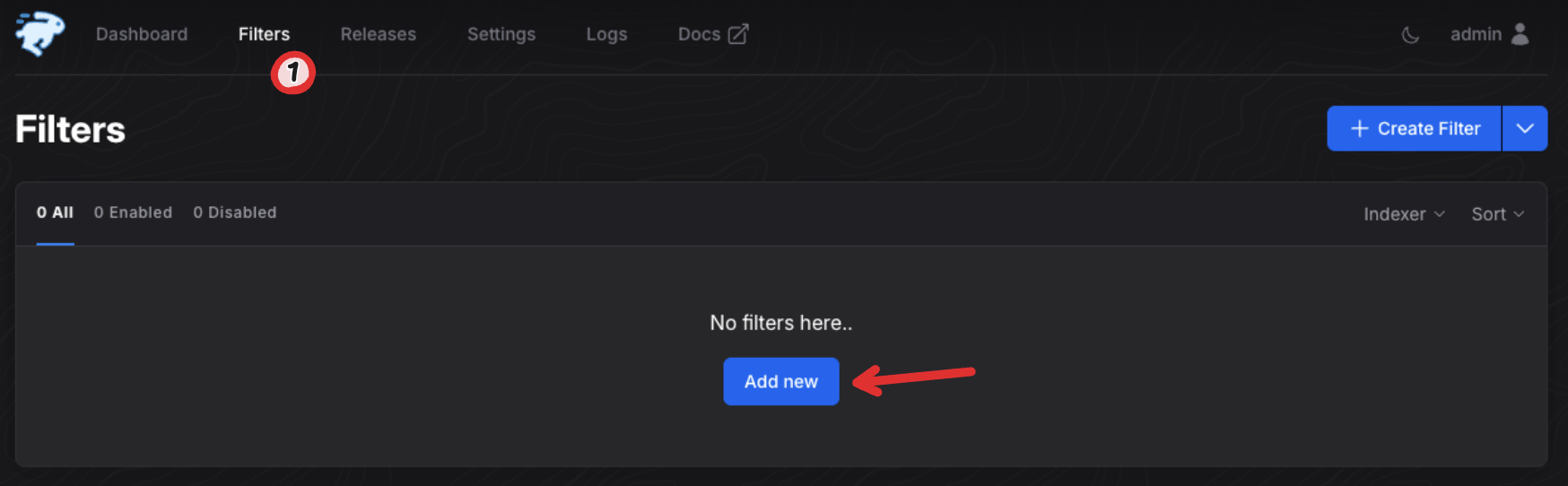
Now, navigate to the ‘Filters’ tab and select ‘Add new’.
Name this filter ‘Movies’
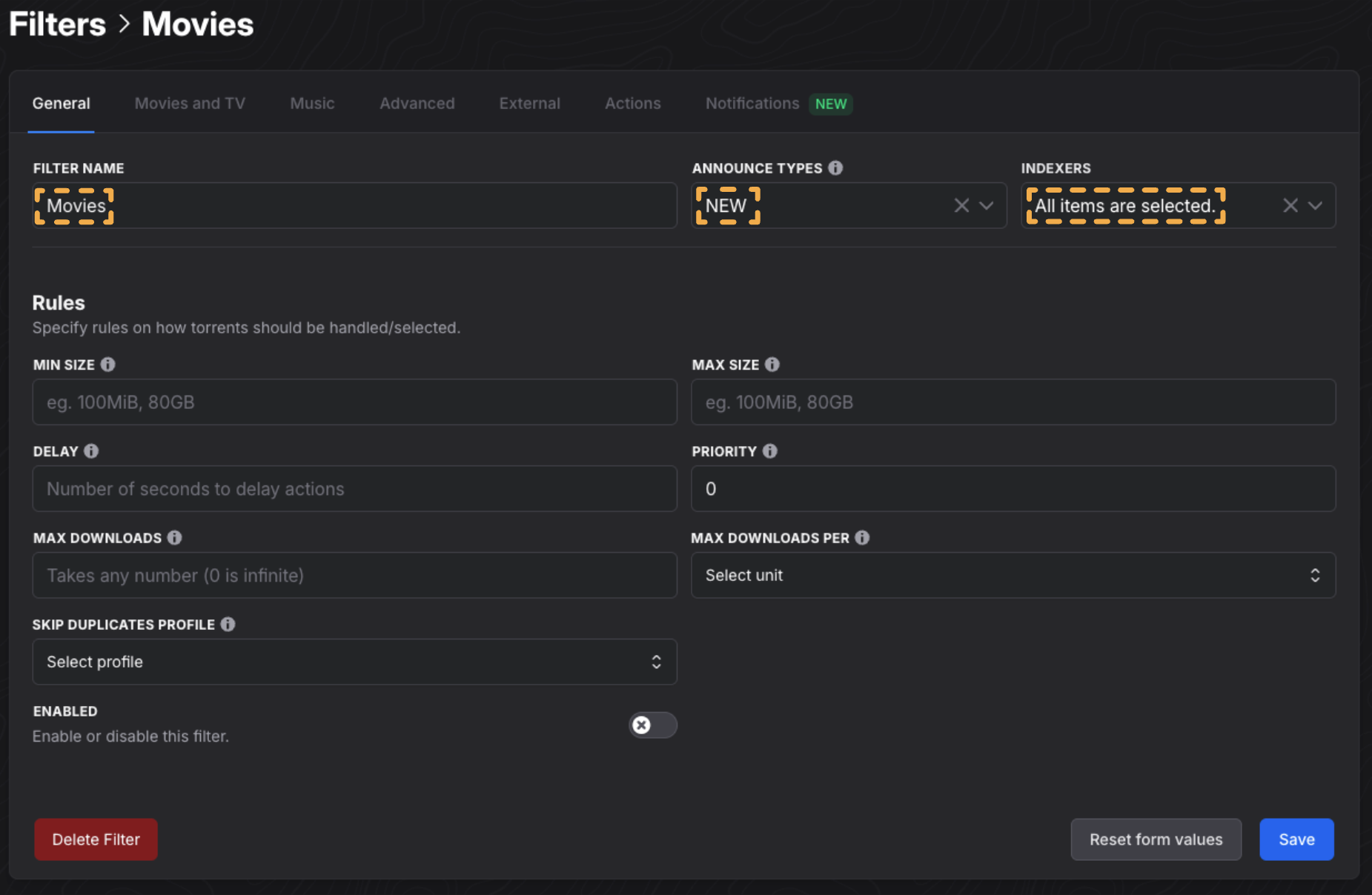
Ensure the announce type is set to ‘NEW’, and all correct indexers are applied.
Now, let’s add an action to actually send these torrent announcements to Radarr.
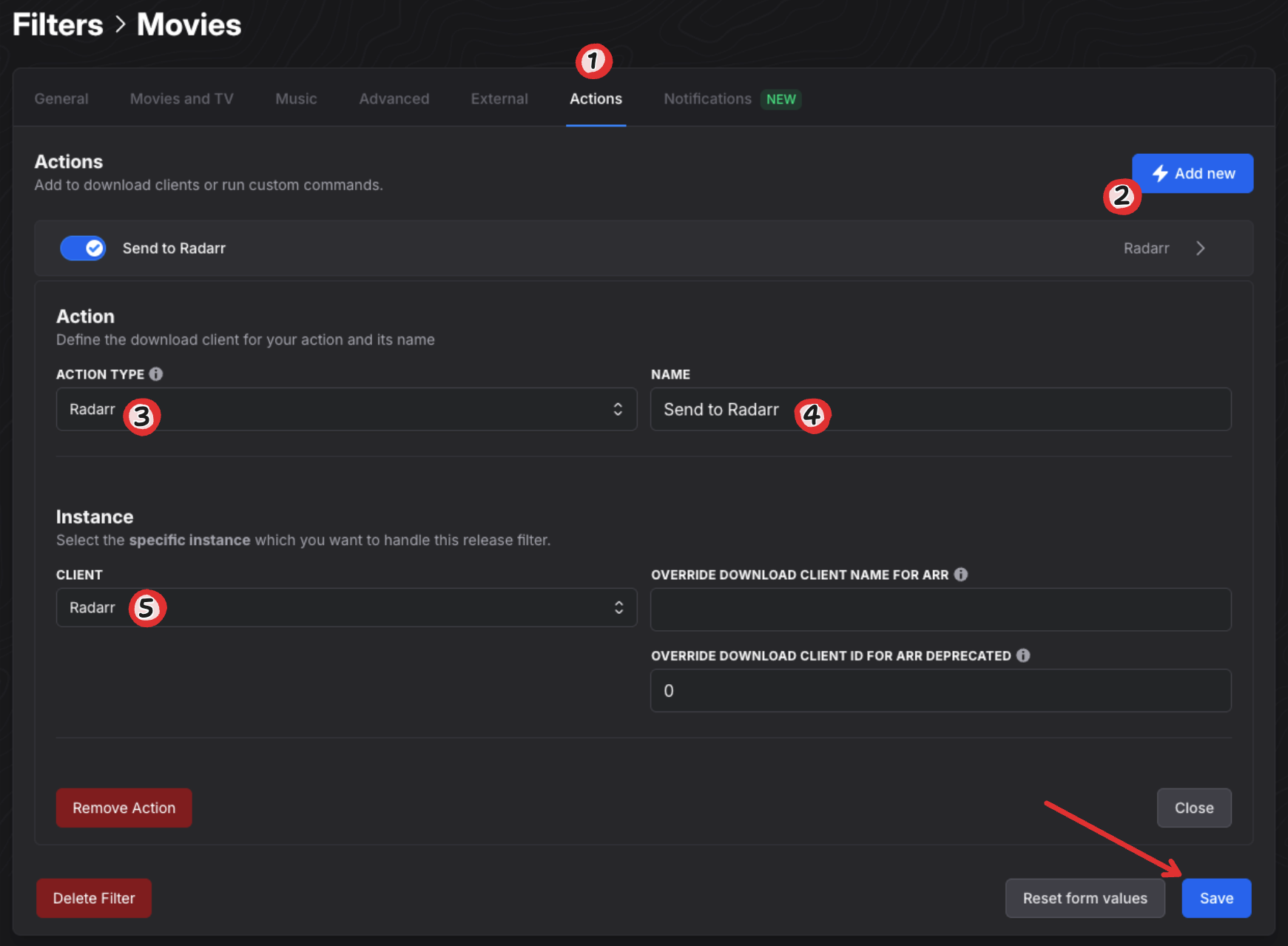
Within the filter’s settings, select the ‘Actions’ tab. Click ‘Add new’. Set the action type to ‘Radarr’, and name it ‘Send to Radarr’. Select Radarr as the download client and click ‘Save’.
Now Radarr’s filter is set up. Repeat the entire process of step 3, instead naming it ‘Tv Shows’, with a Send to Sonarr action.
Perfect. Now we have 2 filters to movies and tv shows, ready to send torrents to Radarr and Sonarr. Enable them both in the Filters tab!
4. Create Lists for Radarr and Sonarr
Lists are a feature that automatically use Radarr/Sonarr’s monitored items to update a filter, only accepting required items.
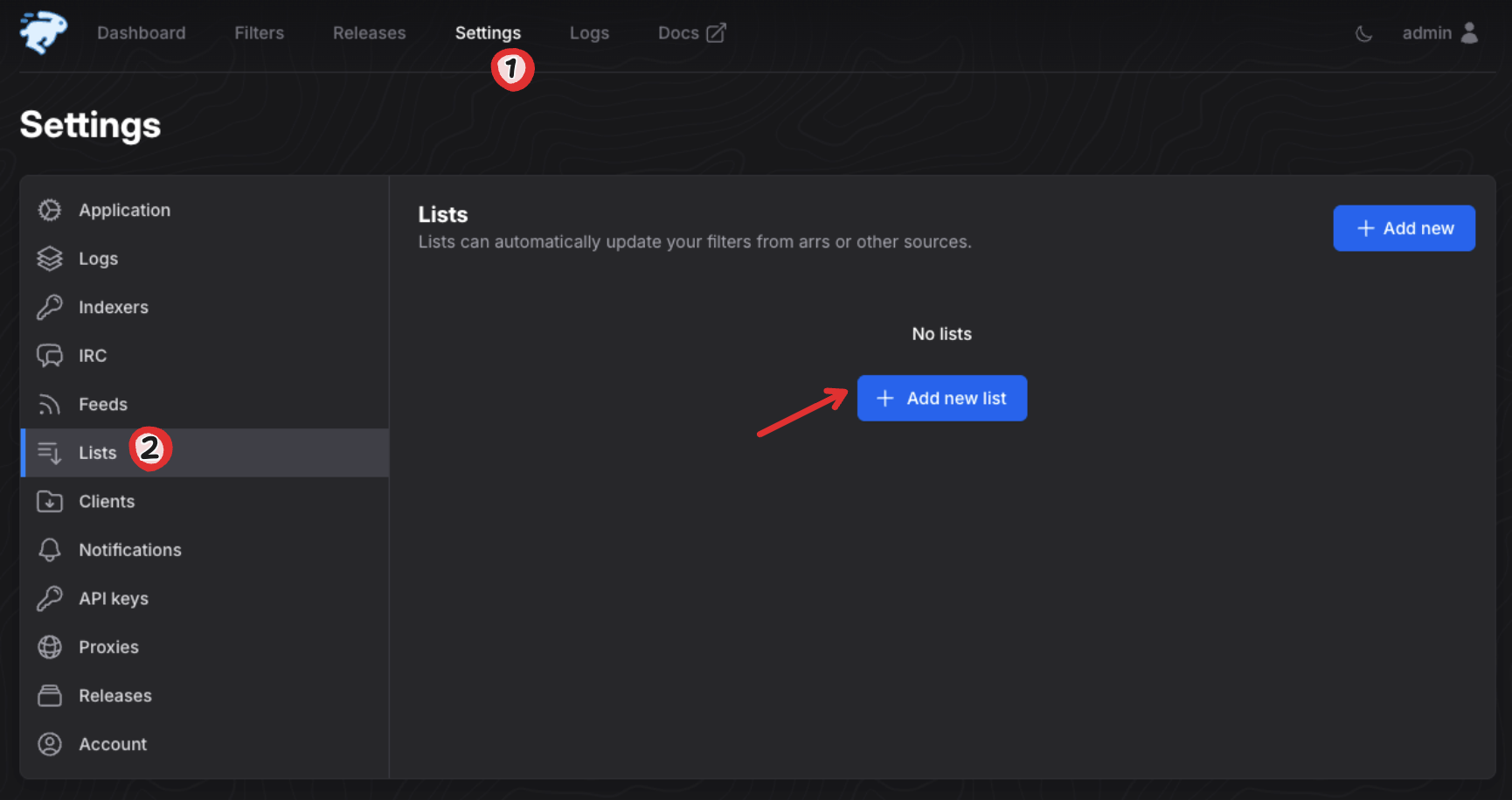
Navigate back to ‘Settings’ and the ‘Lists’ section, and then click ‘Add new list.’
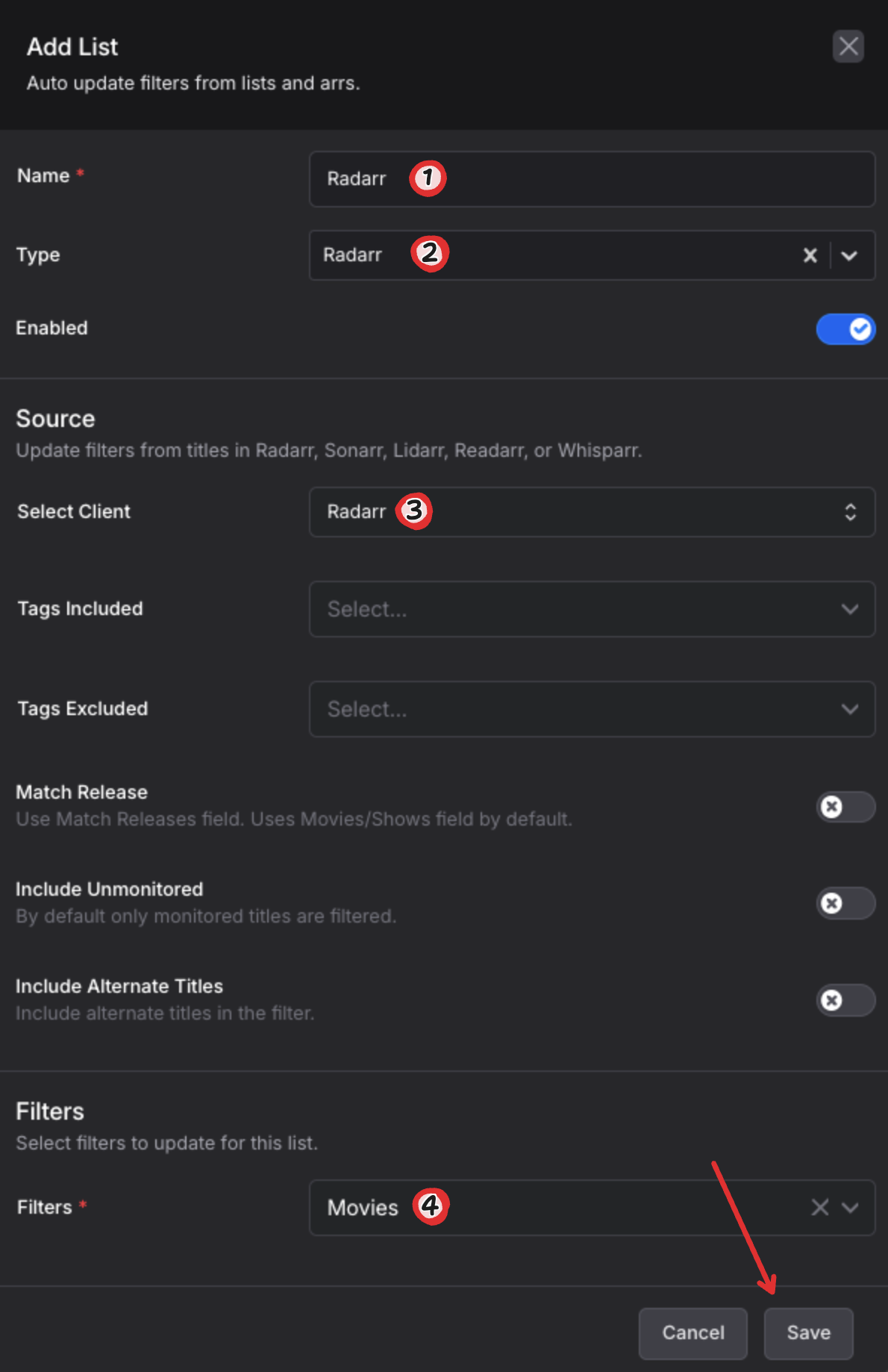
Let’s first create a list for Radarr. Enter ‘Radarr’ as the name, type and client. Set the Filter to your previously created ‘Movies’ filter. Click Save.
Repeat the process for Sonarr. Enter ‘Sonarr’ as the name, type and client. Set the Filter to your previously created ‘TV Shows’ filter. Click Save.
5. Enable IRC
Almost done! All we have to do now is simply enable Autobrr’s IRC server, so we start recieving new announcements.
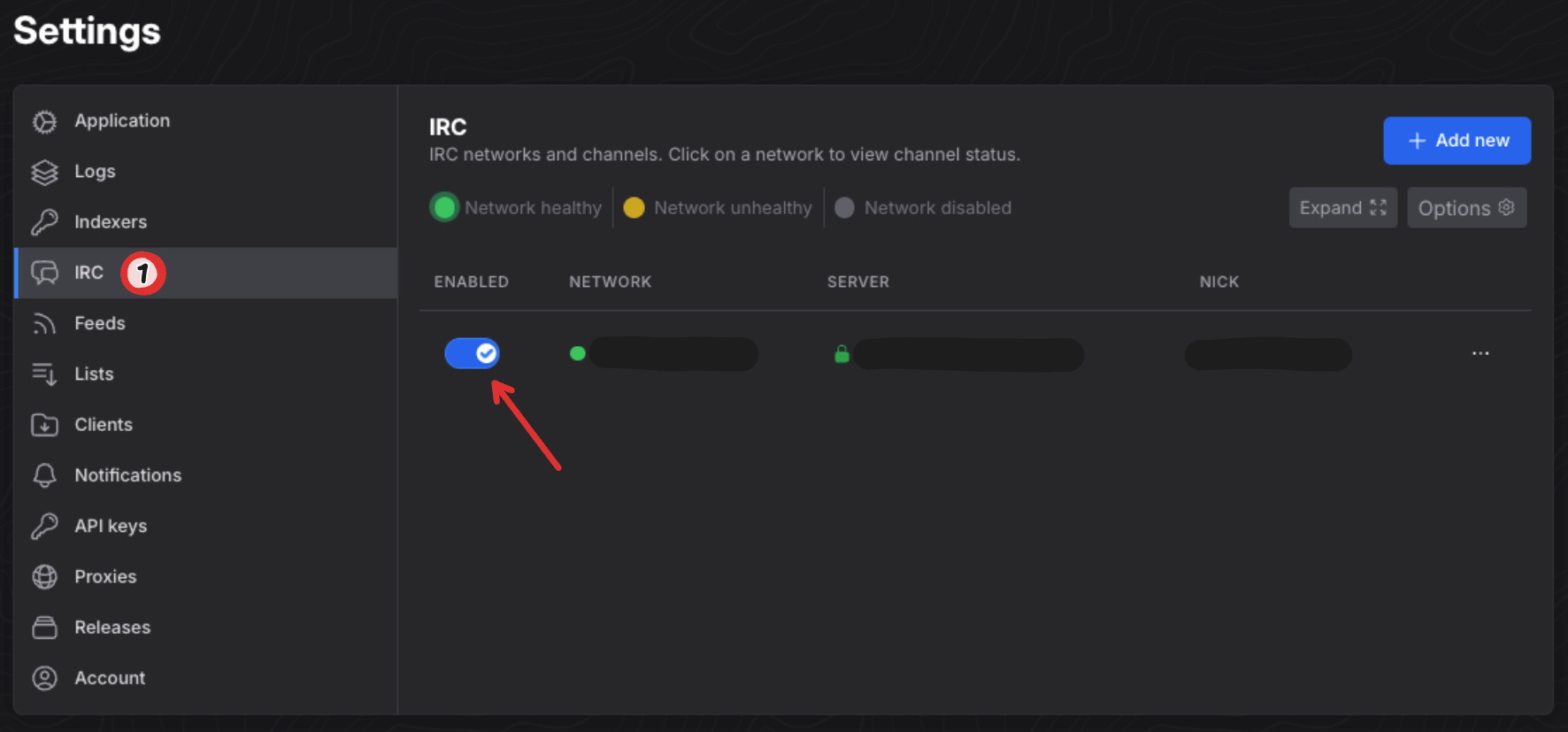
Navitage to the ‘IRC’ section inside of ‘Settings’, and enable all of your Indexers.
And that’s it! 🥳
Now you have automatic fetching of relevant torrents as soon as they release, enabling you to level up your seeding!
Thanks to not-first on Github for contributing to this guide!


